

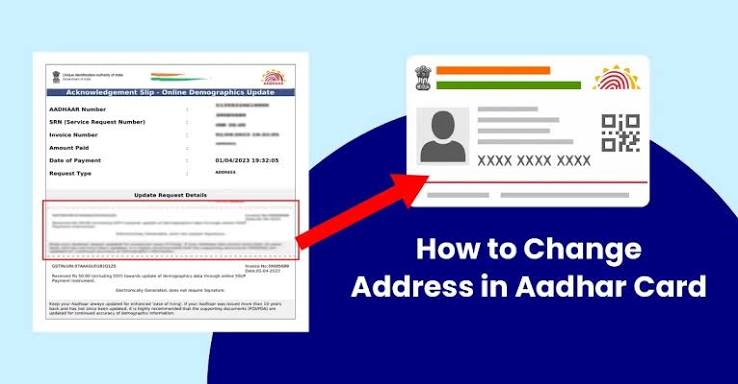

In today’s digital age, the government of India has made significant strides in streamlining services for its citizens, one of which is the updating of the Aadhaar card. If you recently moved or wish to update your address for any other reason, knowing how to change the address in the Aadhaar card online can save you not only time but also a lot of hassle. In this article, we will guide you through the verified steps for changing your address and also touch upon how to download your e-Aadhaar card.
Table Of Content
- Understanding the Importance of Updating Your Aadhaar Address
- Steps to Change Address in Aadhaar Card Online
- Step 1: Visit the UIDAI Website
- Step 2: Click on “Update Aadhaar Details”
- Step 3: Enter Your Aadhaar Number
- Step 4: Authenticate Using OTP
- Step 5: Choose the Address Update Option
- Step 6: Fill Out the New Address
- Step 7: Review Your Application
- Step 8: Submit Your Request
- Step 9: Check Your Status
- Step 10: Download Your e-Aadhaar Card
- Additional Tip: Downloading e-Aadhaar Card
- Common Mistakes to Avoid
- Incorrect Details
- Supporting Documents
- Active Mobile Number
- Conclusion
Understanding the Importance of Updating Your Aadhaar Address
Your Aadhaar card is a vital document in India. It serves as a proof of identity, and keeping the information current is essential. An updated address ensures that you can access various government services without any hindrance. Moreover, many services like banking and mobile connections require you to present an up-to-date address. Understanding how to change address in aadhar card correctly helps ensure that your records remain accurate and accepted across various institutions.
Steps to Change Address in Aadhaar Card Online
Step 1: Visit the UIDAI Website
Start by visiting the official UIDAI (Unique Identification Authority of India) website. The link is uidai.gov.in.
Step 2: Click on “Update Aadhaar Details”
On the homepage, navigate to the “My Aadhaar” section. There, you will find the option labeled “Update Your Aadhaar.” Click on it.
Step 3: Enter Your Aadhaar Number
You will be prompted to enter your 12-digit Aadhaar number. Input your Aadhaar number and click on “Send OTP.” An OTP (One-Time Password) will be sent to the registered mobile number linked to your Aadhaar.
Step 4: Authenticate Using OTP
Check your mobile phone for the OTP and enter it in the required field on the UIDAI website. Click “Login” after entering the OTP. This authentication step is crucial for security purposes.
Step 5: Choose the Address Update Option
Once logged in, you will land on a dashboard where you can see options to change various details. Select “Update Address.”
Step 6: Fill Out the New Address
You will now be taken to a form where you can input your new address. Make sure to fill in all the required fields accurately. You may also be required to upload supporting documents that validate your new address. Accepted documents include utility bills, rental agreements, and government-issued ID cards with the new address.
Step 7: Review Your Application
Before submitting, double-check all the entered information to avoid any mistakes. An incorrect address could lead to further complications and delays.
Step 8: Submit Your Request
Once you are satisfied that all details are correct, click on “Submit.” You will receive an acknowledgment slip, which contains a URN (Update Request Number). Keep this slip safe; it will help you track the status of your address update.
Step 9: Check Your Status
To check the status of your address update, return to the UIDAI homepage and select “Check Aadhaar Update Status.” Enter your URN and the security code to see the current status of your request.
Step 10: Download Your e-Aadhaar Card
Once your address has been updated, you may want to download your updated Aadhaar card. To do this:
- Go back to the UIDAI website.
- Click on “Download Aadhaar” under the “Get Aadhaar” section.
- Enter your Aadhaar number or Enrollment ID.
- Enter the captcha code and click “Send OTP.”
- Authenticate by entering the OTP sent to your registered mobile number.
- Once authenticated, you can download your e-Aadhaar card.
Additional Tip: Downloading e-Aadhaar Card
Your downloadable e-Aadhaar card is available in PDF format and is password-protected. The password will be the first four letters of your name in uppercase followed by your birth year. For example, if your name is “Amit” and you were born in 1990, the password will be “AMIT1990.” The e aadhaar card download process is convenient because it allows you to access a legally valid digital copy of your Aadhaar anytime without waiting for a physical card.
Common Mistakes to Avoid
Incorrect Details
Always double-check the details you are entering. A small mistake can lead to the rejection of your application.
Supporting Documents
Ensure that the documents you upload clearly show your new address. Blurry or unclear images can lead to complications.
Active Mobile Number
Make sure your registered mobile number is active to receive the OTPs. If it has changed, you may need to update that first.
Conclusion
Changing your address in your Aadhaar card has been made much easier with the introduction of online services. By following the verified steps outlined above, you can ensure that your address is updated without any hassle. Keeping your Aadhaar information current will not only make accessing essential services easier but also ensure that you remain compliant with governmental regulations. Remember, you can always download your e-Aadhaar card for convenience, which is an equally valid document as the physical Aadhaar card. If you encounter any difficulties during the process, do not hesitate to reach out to the UIDAI support team for assistance.
Staying updated with your Aadhaar details is essential; take the time to complete your address update today!